
Drillhole Traces
To access this screen:
-
Formatting all loaded drillholes:
-
Display the Plots window
-
Manage ribbon >> Format >> Overlays.
-
Select the Dynamic/Static Drillholes tab.
-
-
Formatting a specific drillhole overlay:
-
Display the Plots window
-
Manage ribbon >> Format >> Overlays.
-
Select the Overlays tab.
-
Select the Drillholes tab.
-
Check Display Drillhole Traces.
-
Click Format.
-
Use the Drillhole Traces screen to configure the display settings for both static and dynamic drillhole objects. Drillhole data can be displayed or hidden according to whether it is 'on-section' (the data for the drillhole lies within the same viewable zone as the current section view) or 'off-section' (data lies off of the current section view).
In addition, you can configure the colours, symbols, labels and line drawing styles used during drillhole display.
The preview panel on the right of the screen shows the result of the currently selected display settings. In the following example, the red lines indicate the drillhole data that lies within the section view ('on-section') and the dotted lines represent the off-section data. Symbols have been used for collar positions, intersections and the end-of-hole positions:
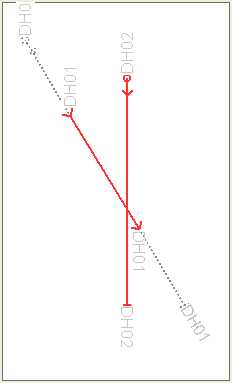
The preview panel will be updated automatically when changes are made in this screen.
Drillholes, Object Filters, Columns and Column Filters
Drillhole data objects are often coupled with 'downhole column' data to provide more information about the drillhole data. This could be in the form of a histogram, listed grade values, braces, bar charts, and other column types. Downhole columns are formatted separately (using the Format Column Display Screen) from the actual drillhole data (which uses the Traces as Holes screen).
View Filtering can be applied to any object in memory, including drillholes, to control the data that is displayed at any one time. This is controlled by a filter expression which can be defined by various methods, including the Data Object Manager or, to specifically filter drillhole data, using the filter-drillholes command.
Drillhole segments and downhole columns will always honor this object-level filter. If data does not pass the filter, neither it nor the associated downhole column data will be shown.
However, the situation is slightly more complex where a 'column-specific' filter exists. All downhole columns can be associated with their own filter (using the Filter tab on the Format Columns screen). In this case, an aspect of the downhole column will only be shown if it passes both the object-level and column-level filters. For example, if a drillhole object was filtered in the Data Object Manager to only show data above the X value 150, only column and drillhole data would be shown above the 150 position. If an AU column was set to show results only where the grade surpasses the 1.0 grade cut-off point, downhole column data would only be shown above 150 in X and where grade values exceed 1.0 ppm.
Screen Structure
The number of tabs shown on this screen depends on whether the formatting you are applying relates to all loaded drillholes (using the Dynamic Drillholes tab) or to a specific drillhole object overlay (using the Dynamic/Static Drillholes tab):
-
The Dynamic Drillholes tab is broken down into two sub-panels, Lines & Symbols and Labels.
-
The Static Drillholes tab, part of the Traces as Holes screen, contains an additional Color tab to allow you to select a legend to be used to display the selected overlay.
For more information on a particular tab, select a link from below:
-
Color (overlay formatting only)
Use the following settings to control how drillhole traces, labels, and colors are displayed. Click Apply to update the current section view, or click OK to update the view and close the formatting screen.
-
In the general settings, configure the overall visibility of drillhole traces and downhole columns.
-
Check Enable Drillhole Traces and Downhole Columns on the Dynamic/Static Drillholes tab to control the overall visibility of columns and drillholes. If this check box is cleared, data is not displayed, regardless of any further display settings.
-
Note that this field will not be displayed if drillhole traces are being formatted using the Traces as Holes screen, which is used to format overlay-specific display settings for static drillholes.
-
Check Display Drillhole Traces to display drillhole data. This option is available only if Enable Drillhole Traces and Downhole Columns is selected.
-
Use the Lines & Symbols tab to set general display properties for static drillhole data.
-
Select Holes Passing Section or All Holes to control how drillholes are displayed in relation to the selected section view.
-
If the Holes Passing Section option is selected, drillhole data will only be displayed if it intersects or passes through the current section view. All other drillhole data objects will not be drawn.
-
If the All Holes option is selected, drillhole data will be displayed regardless of its relation to the section view. Note that you cannot select this option unless both On Section and Off Section fields are selected (see below).
-
-
If all holes currently pass through the section view, this setting will have no effect.
-
Note that although these options control which drillhole data is displayed, the resulting view is also subject to any clipping settings that may be applied. For more information on this, see Clipping Data.
-
Use On Section and Off Section to independently control whether on-section or off-section data is drawn, and to define the display settings for each option.
-
Select a Line style for the drillhole trace using the drop-down list.
-
Thickness: use the spin buttons to specify a line thickness in pixels, or enter a value directly into the middle field.
-
Color: select a colour using the displayed colour picker utility.
-
-
Use Secondary Clipping: if you have specified secondary clipping limits (using Clipping Limits in the Design window), this option will allow these limits to be applied to the current section view.
-
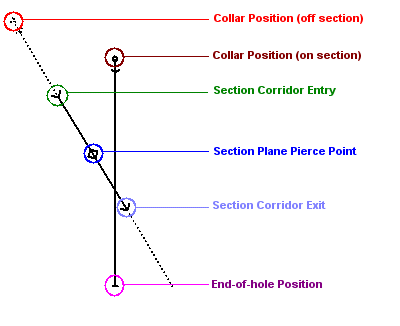
Symbols: to enable the display of symbols for a particular part of the drillhole (and to choose which symbols to use for each key location), enable the relevant check box and then pick a pixel size using the supplied spin buttons, or by entering a value directly into the appropriate field. Then, select a symbol shape using the Pick Symbol drop-down list provided.
-
The full list of available symbol options is listed below. All options support the selection of a size and symbol type.
-
Collar: indicates the collar position of the drillhole trace.
-
Section Plane Pierce Point: indicates the position at which the drillhole intersects with the currently defined section plane.
-
Section Corridor Entry and Exit: elect to apply symbols at the terminal points of the trace where they intersect with the clipping limits relevant to the section plane.
-
End-of-hole: indicate an end-of-hole position with this option. If this option is enabled, you are granted access to two additional controls. Enable and use the drop-down list to choose which value to display. You can select any data column from the drillhole object in context.
-
-
The Distance From Section check box is used to display the real-world distance from the currently defined section plane to the end-of-hole position. If enabled, this information will either be shown in brackets after the end-of-hole value label (if active) or as a standalone value. You can define precisely how this text is aligned by clicking Configure. The configuration screen allows you to set the rotation of the text to be either Parallel with the final drillhole segment, or at any custom Angle.
-
You can also use the Label screen to specify the offset of the text from the drillhole axis. Click OK to update the preview and return to the Traces as Holes screen.
-
Use the Labels tab to control how drillhole labels are displayed and the extent to which labelling takes place.
-
The label components on the Labels tab are broken down into the following sections:
-
Collar
-
Section Entry
-
Section Exit
-
End-of-hole
-
Depth Intervals
-
-
For each section, choose whether a label is displayed and, where applicable, select the database column used to define the displayed value.
-
Use the visibility check box to show or hide the label for the selected drillhole area.
-
Use the field selection drop-down list to choose the database column used for the displayed value.
-
-
The selectable values depend on how you accessed the formatting screen:
-
If you accessed the drillhole formatting functions using the Static Drillholes tab of the Format Display screen, you can select a value from any loaded drillhole definition table, such as assays or lithology.
-
If your formatting is overlay-specific, using the Overlays tab of the Format Display screen, you will be able to select any value from any data column associated with the drillhole object itself, such as LENGTH, A0, B0, or C0.
-
-
Click Configure to show the Label Edit screen, which is used to define how a label is displayed.
-
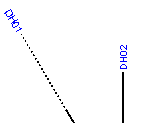
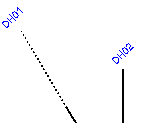
Select Parallel or Angle to align the label parallel to the drillhole trace or at a specific angle. If set to Angle, define the angle in degrees. The following image shows a parallel label setting in action:
-
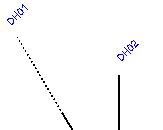
Note how the angle of the label varies according to the angle of the drillhole trace. If an angle of 45 degrees is specified:
-
All labels are displayed at 45 degrees from a flat horizon. This setting is not relative to the display of the drillhole itself.
-
Check Centre to align the label laterally with the centre of the drillhole trace. The image above shows a disabled Centre setting, where the label start position is in line with the axis of the drillhole. If enabled, the label is positioned centrally on the drillhole axis:
-
Use Position Offset to specify the distance along the axis of the drillhole that the label will be displayed from the origin point.
-
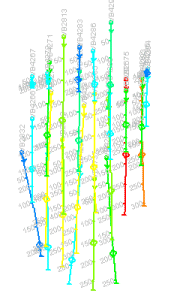
Use Depth Intervals to apply ticks along an entire downhole length, at predefined intervals. The associated annotation (to indicate depth values) is optional, but if present, can be configured with regards to font, alignment and orientation. This field is listed separately because, although it shares identical configuration options with the label, it also supports a Show Depth option. If enabled, the depth (Z value) is shown for each interval indicator, for example:
Click Font to set a global font property for all currently active label components. This launches the Font screen, used throughout your application to configure the font face, size, and style for a particular context.
-
Use the Color tab to select the colour of on-section and off-section data, and optionally specify a legend containing instructions to colour data. This tab is displayed only when overlay-specific formatting is being applied.
-
Use On Section/Off Section to define how data inside or outside the section view limits is coloured. To edit the controls for each category of data, ensure that either On Section and/or Off Section fields are displayed on the Lines & Symbols tab.
-
Select Fixed color to display the entire object overlay in a fixed color.
-
Select Color using legend to select a legend and the data column within the selected object that the legend will be applied to, using the Column and Legend fields below.
-
Use Legend/Column when either, or both, of the On Section or Off Section categories above are set to Color using legend. Select a data column containing the values used to define a color, and a corresponding legend to define how each color will be chosen. You can also use the preview legend icon to show a key representing the selected legend. Clicking the Edit Legend icon will launch the Legends Manager to allow you to make changes to the legend. You can also create a default legend automatically for any selected column.
Note: If any data values in the selected column cannot be matched to an interval, the currently selected Fixed Color is used for on/off section data. For more information on using legends, please refer to your Legends online Help.
Related topics and activities:
